> ## Documentation Index
> Fetch the complete documentation index at: https://docs.aidocmaker.com/llms.txt
> Use this file to discover all available pages before exploring further.

# Creating a Spreadsheet from Bank Statements

> How to extract transactions from a financial document using Aidocmaker.com

This example demonstrates how to extract a list of transactions from a financial document, such as a bank or credit card statement, using Aidocmaker.com.

### Step 1: Select AI Model

Choose an AI Model of choice, but Auto Mode is recommended

### Step 2: Optional Background Information

Provide background information such as the type of document (e.g., bank statement, credit card statement) or any specific details to improve extraction accuracy.

### Step 3: Instructions

Provide the instructions to extract transactions

* Type the instructions
  <img src="https://mintcdn.com/level2labs/7g8uqKgyAROIrrJ6/getting-started/images/extract_transactions_instructions.png?fit=max&auto=format&n=7g8uqKgyAROIrrJ6&q=85&s=7ae4929ca4dc0df78ef387b7bddaa6b1" alt="Instructions Example" width="1062" height="233" data-path="getting-started/images/extract_transactions_instructions.png" />
  <div style={{textAlign: 'center', fontStyle: 'italic', marginBottom: '1em'}}>Extract all transactions from this bank statement</div>

* Use <b>Optimize</b> button to optimize the instructions
  <img src="https://mintcdn.com/level2labs/7g8uqKgyAROIrrJ6/getting-started/images/extract_transactions_instructions_optimized.png?fit=max&auto=format&n=7g8uqKgyAROIrrJ6&q=85&s=2bd60f6b2da15ecfb64de8dc32ba2571" alt="Optimized Instructions" width="1069" height="289" data-path="getting-started/images/extract_transactions_instructions_optimized.png" />
  <div style={{textAlign: 'center', fontStyle: 'italic', marginBottom: '1em'}}>AI optimized instructions</div>

* <b>Optional:</b> You can also turn off <b>images</b> and <b>web search</b> capabilities if you want the extraction to be performed without external images or web data.

### Step 4: Reference Materials

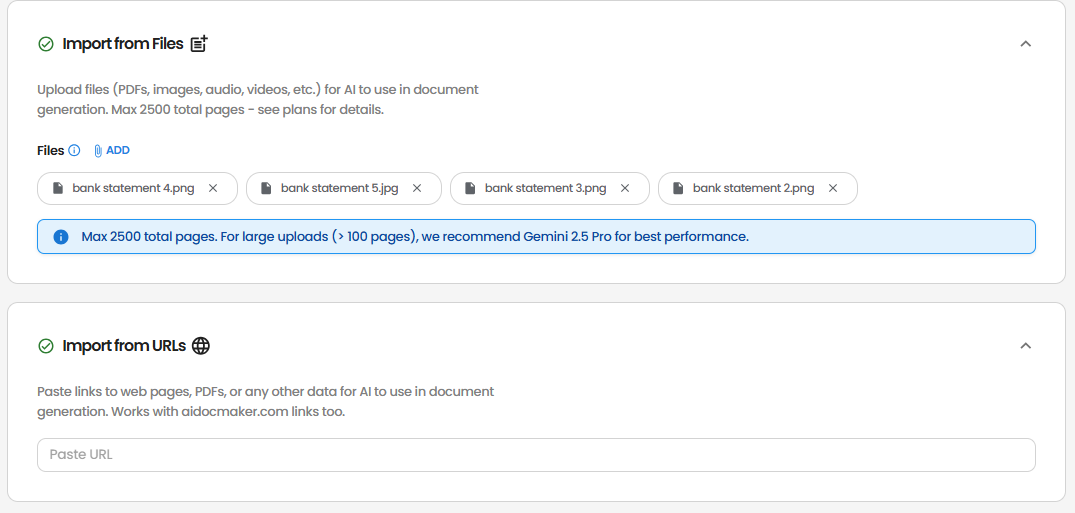
Upload the following files:

* Bank or credit card statement (PDF, CSV, or Excel)

Add the following URLs if needed:

* Online statement access page or related documentation

<img src="https://mintcdn.com/level2labs/7g8uqKgyAROIrrJ6/getting-started/images/extract_transactions_imports.png?fit=max&auto=format&n=7g8uqKgyAROIrrJ6&q=85&s=aeddec95f1eafdc4aa3e3f0361b5029d" alt="Imports" width="1075" height="513" data-path="getting-started/images/extract_transactions_imports.png" />

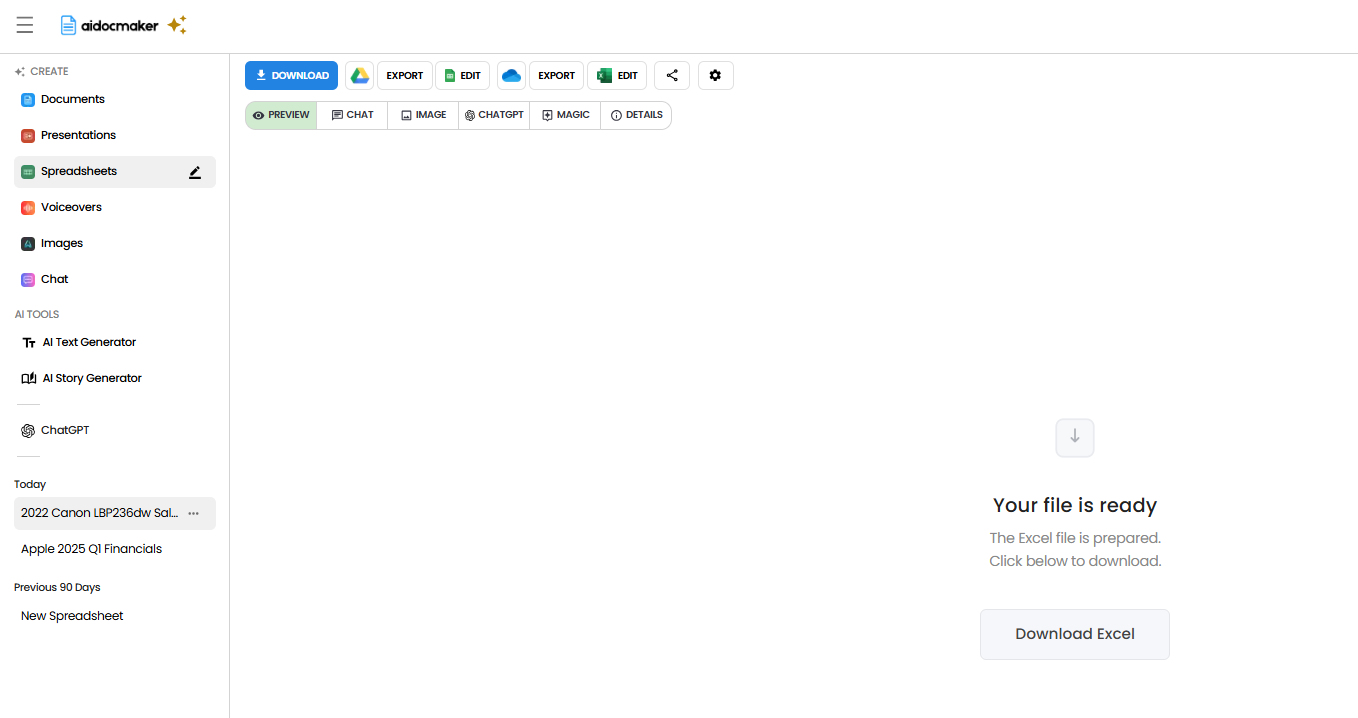
### Step 5: Generate and Download!

<img src="https://mintcdn.com/level2labs/7g8uqKgyAROIrrJ6/getting-started/images/extract_transactions_generate.png?fit=max&auto=format&n=7g8uqKgyAROIrrJ6&q=85&s=608c70997943f010755221484d17919a" alt="Generate" width="642" height="134" data-path="getting-started/images/extract_transactions_generate.png" />

<img src="https://mintcdn.com/level2labs/7g8uqKgyAROIrrJ6/getting-started/images/generate_spreadsheet_results.png?fit=max&auto=format&n=7g8uqKgyAROIrrJ6&q=85&s=d2661a9a5537fcacf0696bc33e2e013f" alt="Download" width="1358" height="718" data-path="getting-started/images/generate_spreadsheet_results.png" />

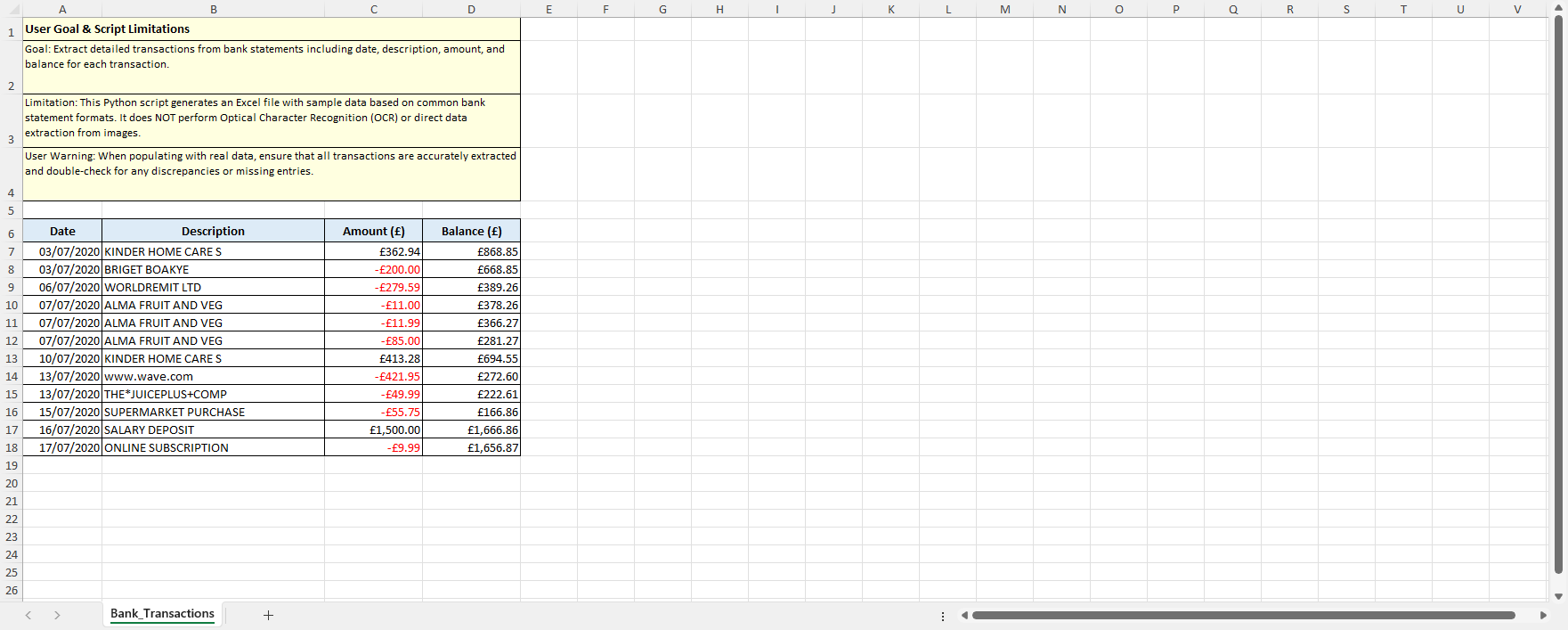
The extracted transactions will be presented in a structured format, such as a table, including:

* Date
* Description
* Amount
* Category (if available)
* Balance (if available)
<img src="https://mintcdn.com/level2labs/7g8uqKgyAROIrrJ6/getting-started/images/extract_transactions_results.png?fit=max&auto=format&n=7g8uqKgyAROIrrJ6&q=85&s=6facb762780b909a1f46fa7654d729fe" alt="Results Example" width="1761" height="707" data-path="getting-started/images/extract_transactions_results.png" />

Try extracting your own transactions on [Aidocmaker.com](https://www.aidocmaker.com)!